
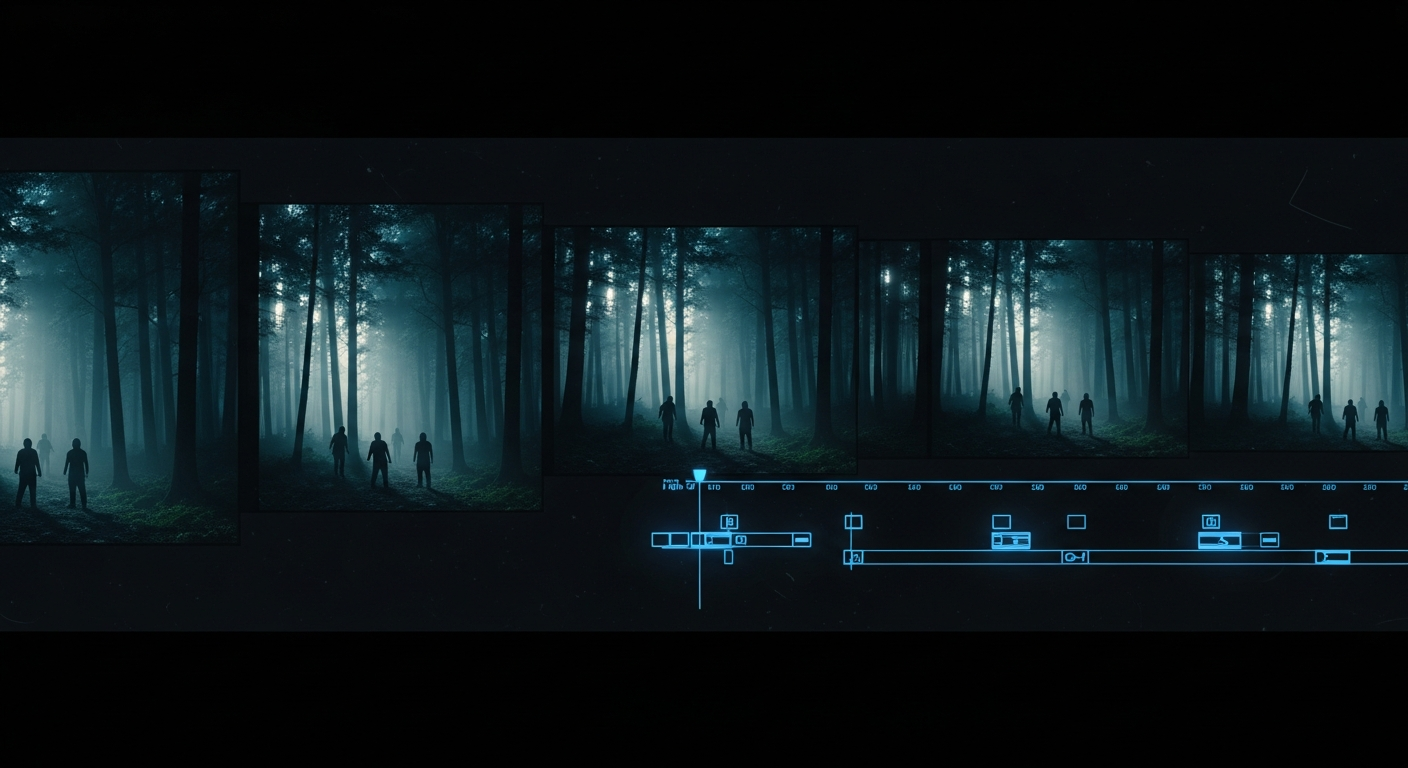
How to Create Long-Form Videos with Grok AI for Free
Most AI video tools give you 6 seconds, maybe 10 if you're lucky. Everyone says the same thing: stitch clips together in editing software. But here's what most people don't know—Grok can create full long-form videos with the same characters, same look, and perfect continuity from start to finish.
The trick is understanding one workflow that almost nobody finds: the extend video method combined with frame bridging.
Step 1: Write Your Story with Grok#
Start a new chat and ask Grok to create a 30-second short story concept. Your prompt should be detailed and visual:
Create a 30-second short story featuring exactly two main characters to keep visual continuity.
The setting is a dark forest in the evening or at night where a man and a woman move through the woods together.
The tone should feel atmospheric and slightly mysterious, but not horror.
Use simple, highly visual language that is easy to translate into video.
Structure and guidelines:
- Length: The narrative should fit naturally within about 30 seconds of voice over.
- Cast: Only the same two characters appear from start to finish.
- Engagement: Include a subtle point of interest or tension every few seconds to maintain viewer attention.
- Style: Cinematic and grounded in visible actions, gestures, and surroundings rather than inner thoughts.
- Plot shape: Clear setup, gradual build of curiosity or tension, a notable moment or reveal, and calm or meaningful resolution.
Grok will return a complete story concept. This becomes your foundation. Keep it simple and visual—every element must be something the AI can actually animate.
Step 2: Break the Story into 6 Scenes#
Ask Grok to divide your story into clear, detailed scene prompts:
Take the story you created and divide it into clear, detailed scene prompts.
Each scene should describe exactly what is visible on screen: Character movements, environment, lighting, and mood.
Set every scene to approximately 6 seconds of screen time.
Ensure the scenes connect smoothly so the final result feels like one continuous cinematic sequence.
Do not add any new characters or locations beyond those already present in the story.
Keep the description simple, concrete, and easy for an AI video generator to interpret visually.
Grok outputs six scene titles with full visual descriptions. These are generation-ready prompts—copy all six.
Step 3: Generate Your First Image and Video#
Click Imagine in Grok and paste your scene one prompt. Select horizontal aspect ratio (16:9 is best for cinematic). Generate and pick the image variation that matches your vision best. This image becomes your starting frame.
Once selected, tap Make Video. Wait 10-15 seconds. Grok creates a 6-second animated clip from that starting image.
Step 4: The Extend Video Method—Your Key to Long-Form#
This is where the magic happens. Look to the right of your video and tap the three dots. Select Extend Video.
A new prompt box appears asking "What happens next?" Paste your scene two prompt. Generate and wait 15-20 seconds. Your 6-second clip just became 12 seconds. No cut, no jump—the transition is seamless.
The characters stay exactly the same. The woman and man continue naturally. The story flows like it was always one continuous shot.
Keep extending: three dots → Extend Video → Scene three → Generate. Now you're at 18 seconds. Repeat for scene four (24 seconds) and scene five (30 seconds).
You just created a 30-second atmospheric story with consistent characters, smooth transitions, and perfect continuity—all inside Grok.
Step 5: Break the 30-Second Limit with Frame Bridging#
Grok hits a limit at 30 seconds per chain. To go longer, you need to start a fresh chain using the last frame as a bridge.
Pause your 30-second video and drag the progress bar all the way to the end. Right-click on the last frame and select Save Frame as Image (or copy video frame, depending on your browser). Save it. This is your bridge.
Now go back to your Grok chat and ask:
Continue the story with six more scenes. Same format, same characters, 6 seconds each.
Pick up right where scene six left off.
Grok gives you scenes seven through twelve. Copy all six new prompts.
Click Imagine and upload that last frame image. Paste your scene seven prompt below it. Hit generate. Grok creates a 6-second video starting from that exact frame. The characters look identical because they're literally continuing from the previous shot.
Now you're back in the extend loop. Three dots → Extend Video → Scene eight → Generate → Extend → Scene nine → Extend → Scene ten → Extend → Scene eleven. Now you're at 60 seconds total—a full minute of seamless video.
Step 6: Scale to 90 Seconds or Longer#
Want 90 seconds? Repeat the exact process. Pause your second 30-second video, save the last frame, upload it to Imagine, paste scene thirteen, generate, then extend five more times. Now you're at 90 seconds.
For even longer videos, keep repeating: each 30-second chain + frame bridge + new 30-second chain. You can build 10, 15, even 20-minute videos this way—just continuous narrative chains where each 30-second segment flows seamlessly into the next with the same characters, same style, and same world.
Bonus: Audio Is Already Baked In#
Grok automatically generates videos with built-in sound effects and character voices. Footsteps on damp ground, rustling branches, mysterious music, quiet dialogue—it's all there. The quality isn't studio-level, but it works. Your animation has life without you sourcing anything.
The Upscale Step#
Before downloading, select the three dots next to any video and choose Upscale Video. Wait a few seconds and your video quality improves.
Final Assembly in CapCut#
Download all your clips. Open CapCut (free on mobile or desktop) and import your video clips. Drag them onto the timeline in order. Add a quick fade-in at the start and fade-out at the end if you want. Grok has already added an atmospheric soundtrack, but you can add background music from CapCut's free library or YouTube Audio Library if needed.
Export at 1080p 30fps. Done.
Scaling to YouTube-Length Videos#
Everything above works for 30, 90-second shorts. But what if you want a 15-minute tutorial or 20-minute educational video?
Same process, bigger scope. Instead of six scenes, write 50 scenes. Break your concept into chapters:
Introduction: 5 scenes
Problem: 10 scenes
Solution: 15 scenes
Application: 10 scenes
Conclusion: 10 scenes
That's 50 scenes at 6 seconds each—5 minutes of pure AI animation. Add B-roll, screen recordings, talking head segments, and suddenly you're at 15 minutes.
Create your first 30-second video, screenshot the last frame, start the next chain, repeat. By the time you're done, you'll have 10-15 separate 30-second videos. Import them all into CapCut, line them up, and you've got a full cinematic sequence.
Pro Tips for Consistency#
Write your scenes in advance. Make sure each one flows logically into the next. A Google Doc with all your prompts numbered and organized saves time and keeps you on track.
The hardest part isn't the generation, it's the planning. Spend time upfront getting your story structure right, your characters clear, and your scene descriptions tight. AI generation is fast—storytelling takes thought.
Use simple, concrete language. Avoid abstract concepts or inner monologues. Show actions, gestures, movement, light, and surroundings. What can the AI actually see and animate?
Keep character descriptions consistent across all prompts. The more you repeat the same character description, the more locked in the character becomes.
What You Can Do Right Now#
You can build social media shorts (TikTok, Instagram Reels, YouTube Shorts) and download them as-is—just post. But Grok is one tool in a rapidly evolving landscape. AI video generation changes every month with new models, new features, new platforms.
The workflow you just learned—how to structure stories, how to break them into visually describable scenes, how to chain videos seamlessly, how to think about character consistency—that's what transfers when tools change.
Start with a 30-second story today. Master the extend video method. Then scale up to 60 seconds, 90 seconds, full minutes, and eventually the YouTube-length projects.
The only limit is how many scenes you're willing to write.
Try it on GrokVideoMaker.com — free image-to-video, no account required to get started.